
Resize Image to 20KB Online
Scale dimensions and reduce file size to strictly under 20KB in seconds. Ideal for SSC, UPSC, railway exams, passport portals, and digital application forms.
How to Resize Image to 20KB
Quick, professional in-browser workflow engineered for instant compliance.
Select or Drop Your Image
Choose your high-resolution portrait, signature, or document from your computer or smartphone storage.
Set Target Boundary to 20KB
The tool pre-selects the 20KB ceiling and configures the optimal discrete cosine transform (DCT) quantization ratio.
In-Browser Local Processing
Your device executes the resampling and compression via HTML5 Canvas in under 50 milliseconds with zero server transmission.
Verify & Download
Inspect the sharp preview and exact kilobyte weight, then download your portal-compliant file with a single click.
Why Use This Resize Image to 20KB Tool
Engineered specifically to solve strict upload constraints across public and private portals.
SSC (CGL, CHSL, MTS, GD)
Produces strictly compliant 20KB candidate photos (200x230 px) and signatures (140x60 px) for Staff Selection Commission portals.
UPSC & State PSC Applications
Maintains facial contrast and facial verification clarity within strict 20KB to 50KB administrative recruitment limits.
Railway RRB & Bank Exams (IBPS/SBI)
Eliminates file weight rejection errors on admit card generation and online registration platforms.
Passport, Visa & PAN Submissions
Converts oversized smartphone snapshots into clean, lightweight document images under 20KB.
Supported Format Matrix
How different image formats are handled and optimized to 20KB.
| Input Format | Status | Output File | Visual Quality | Portal Compatibility |
|---|---|---|---|---|
| JPG / JPEG | Recommended | Compliant 20KB JPG | High (DCT Quantization) | Universal (100% Accepted Across Portals) |
| PNG | Supported | Quantized PNG or 20KB JPG | High Contrast for Line Art | Signatures & Transparent Graphics |
| WebP | Supported | Optimized 20KB WebP | Next-Gen Compression | Modern Portals & Web Uploads |
| HEIC / HEIF (iPhone) | Auto-Convert | Direct 20KB JPG | Normalized Color Space | Ready for All Indian Portals |
Before & After Comparison
Real-world reduction metrics preserving clarity while meeting 20KB constraints.
Engine Performance Specifications
Detailed technical capabilities of our in-browser optimization pipeline.
| Specification Metric | Engine Capability |
|---|---|
| Resizing Engine | Bicubic Canvas Resampling + Adaptive DCT Quantization |
| Target Ceiling | Strict hard limit under 20.0 KB (20,480 bytes) |
| Aspect Ratio | Proportional scaling preserved automatically |
| Metadata Cleanse | EXIF, GPS, camera manufacturer data stripped for space savings |
| Privacy Protocol | 100% In-Browser execution (Zero server uploads, zero logs) |
| Processing Latency | < 50ms average on modern mobile & desktop hardware |
| Supported Platforms | Android, iOS (iPhone/iPad), Windows, macOS, Linux, ChromeOS |
Resize Image to 20KB Online Free
Resize Image To 100KB helps you reduce an image for application forms, job sites, and websites when a smaller file is required. Avoid frustrating upload errors caused by files that exceed a portal’s limit.
Use our browser-based tool to resize image to 20KB without installing complex software. Upload your file, choose the requested size, and let the process create a smaller version for your needs.
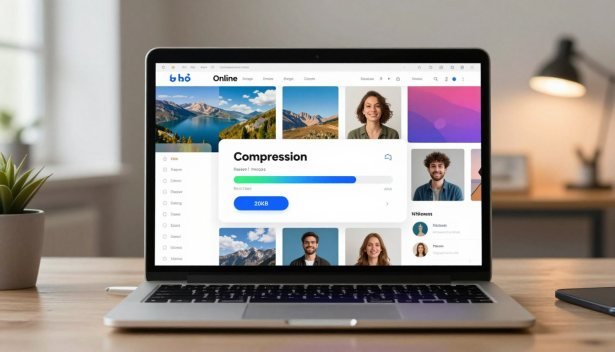
Check the destination portal first to see whether it requires a file under 20KB or exactly 20KB, along with specific dimensions or formats. Our image compression tool helps balance file size and visual quality in your browser.
Key Takeaways
- Prepare images for forms, applications, and websites.
- Reduce file size without installing desktop software.
- Review quality, dimensions, and format before submitting.
- Use the tool directly in your browser.
- Upload and process a file in a few simple steps.
Resize Image to 20KB Online Free With a Simple Online Tool
Visit resizeimageto100kb.in when an application specifies a small image size. The service provides a straightforward way to prepare a file for government, education, employment, or website uploads.
Upload a Photo and Set the 20KB Target
Select an image from your device, upload it to the online image resizer, and enter the target size requested by the portal. Review the instructions carefully before processing.
- Select the original image from your device.
- Enter or select the 20KB target size.
- Start the tool and wait for the process to finish.
Download a Smaller Image in Seconds
When processing finishes, review the output file and confirm its size and quality before downloading. A smaller image can be useful for applications, provided it meets the portal’s requirements.
Use the Tool Without Installing Software
Because the service works in a browser, you can resize image to 20KB from a phone or computer without installing additional software. Upload your file, process it, and download the result when ready.
Why Many Uploads Require a 20KB Image
Some application portals set a maximum file size to simplify storage and processing. Before you resize image files, check whether the requirement is under 20KB or exactly 20KB, along with the required dimensions and format.
Meet File-Size Limits on Indian Application Forms
Indian government, education, and employment portals may set different requirements for photos, signatures, and documents. A portal can specify file size, pixel dimensions, file formats, or a combination of these rules. If your file exceeds the stated limit, the upload may fail.
"Always review the official upload instructions before preparing an image."
Prepare Photos for Government, Education, and Employment Portals
Use an image resizer to resize images for scholarships, admissions, recruitment forms, and other online submissions. A smaller file can still require suitable quality, the correct format, and readable details. Check the portal’s image formats, including whether JPEG, JPG, or png is accepted, before you process the file.
Reduce Upload Errors Caused by Large Image Files
Reducing image size before an upload may help prevent errors and save time. A 20KB target can be useful when the instructions specify that limit, but it cannot guarantee acceptance because every portal has different requirements. Visit resizeimageto100kb.in to resize your file and review the result before submitting it.
Benefits of Compressing Photos to 20KB
When you compress an image online, the smaller file may use less storage, consume less data, and be easier to share.
Save Mobile Data and Storage Space
An image size reducer can create smaller images for devices and cloud storage. The result depends on the original file, dimensions, and compression settings.
Upload Images Faster on Slower Connections
Smaller files generally need less upload time, although connection speed and server performance also affect the process.
Make Photos Easier to Share by Email and Messaging Apps
A reduced file may fit more attachment limits, but each service has its own size policy.
Keep Digital Documents Within Required Limits
Use the tool to prepare a file for the stated target, then confirm its final size and quality before uploading.
| FeatureLarge ImageCompressed Image | ||
| Storage Usage | Usually higher | Usually lower |
| Upload Speed | May take longer | May take less time |
| Email Compatibility | Depends on limits | May fit more limits |
| Data Consumption | Usually heavier | Usually lighter |
How the Image Compression Tool Reduces File Size
When you need to resize image to 20KB, the tool reviews your file and applies compression or resizing settings to approach the selected target. The process may change the file size, dimensions, or quality, so check the result before you upload it.
Analyze the Original Image Dimensions and File Weight
Before processing, the image compression tool checks the original file’s pixel dimensions and current size. This information helps determine how much reduction may be needed for your target.
Adjust Resolution and Compression to Reach the Target
The tool may reduce dimensions, adjust compression, or change the output format. Starting with the original image and using the required settings can help you resize images while preserving important details.
Balance File Size With Readable Image Quality
A smaller file can lose quality, especially when the original contains fine text, faces, or signatures. The image resizer should help create a practical result, but no process can guarantee unchanged quality or acceptance by every portal.
Why a 20KB Result May Need More Than One Adjustment
Complex images may need another adjustment to approach the target. Crop unnecessary areas, confirm the required format, and allow the process enough time to finish before downloading the file.
| Process StageAction TakenResulting Impact | ||
| Initial Scan | Reviews dimensions | Estimates the needed reduction |
| Compression | Adjusts data density | May lower file size |
| Optimization | Refines resolution or format | Helps approach the target |
| Final Review | Checks clarity | Confirms suitability for upload |
Supported Image Formats for 20KB Compression
Different image formats behave differently during compression. Check the portal’s requirements and confirm which image formats the resize tool accepts before you begin.
Compress JPEG and JPG Photos for Everyday Uploads
JPEG and JPG are commonly used for photographs because they can provide a relatively small file size. They are often suitable for portraits and other images without transparency.
Resize PNG Images With Transparent Backgrounds
png files can preserve transparency, but they may require different compression settings. Converting png to another format may remove transparency, so verify the output before you submit it.
Reduce WebP Files for Modern Websites and Apps
WebP can be useful for websites and apps, but not every application portal supports it. Confirm the required format before using WebP compression.
Choose the Best Format for Documents, Photos, and Signatures
Select the format that matches the portal’s instructions and the content of your file:
- JPEG/JPG: Often suitable for photographs.
- PNG: Useful for graphics or transparency when supported.
- WebP: Often useful for websites and modern applications.
| FormatBest Use CaseKey Advantage | ||
| JPEG | Passport Photos | Often produces a smaller file |
| PNG | Signatures | Can support transparency |
| WebP | Web Graphics | Efficient for compatible platforms |
Always verify the portal’s requirements before you process an image. The correct format, dimensions, and target size all affect whether your upload is accepted.
Preserve Readable Quality After Resizing an Image
When you compress an image to 20KB, reducing file size may affect clarity. Use a clean original and review the downloaded result before submitting it through your browser.
Keep Text, Faces, and Signatures Clear
Inspect text, facial features, and signatures at normal viewing size. They should remain recognizable and readable for the intended application.
Understand the Effect of Lower Resolution
Lower resolution can reduce detail, while stronger compression can create visible artifacts. Choose the smallest dimensions allowed by the portal rather than reducing them more than necessary.
Prevent Excessive Blur, Pixelation, and Compression Artifacts
Crop unused background space before resizing and avoid repeatedly saving the same file. These steps can help preserve detail in the important areas.
Check the Downloaded File Before Submitting It
Open the downloaded file, confirm its size and format, and compare its appearance with the original before you upload it.
Resize Passport Photos and ID Images to 20KB
Application portals may set limits for identity photos and documents. Before you resize an image, check the required file size, pixel dimensions, aspect ratio, and format.
Prepare Photos for Online Application Forms
Use our tool to upload a passport photo and prepare it for a form. Resize images according to the portal’s instructions rather than assuming every application requires the same target.
Keep Important Facial Details Visible
After you resize a file, inspect facial details and overall clarity. Compression can reduce quality, so use a clear original and avoid reducing the image more than necessary.
Follow the Portal’s Required Dimensions and File Format
Confirm whether the portal accepts JPEG, JPG, or png and whether it specifies exact dimensions. These requirements are separate from the maximum file size, so check each instruction before uploading.
Check Both the Image Dimensions and the Final File Size
To resize image to 20KB, compare the final size and dimensions with the official instructions. Visit resizeimageto100kb.in when you need to prepare the file for submission.
Make Images Ready for Indian Government and Education Portals
Students and job applicants may need different image settings for forms. Review the portal’s requirements before you process images for admission, recruitment, or examinations.
Prepare Photos for Scholarship and College Applications
Resize a photo early and keep the correct aspect ratio to avoid last-minute problems.
Compress Documents for Recruitment and Exam Forms
Government form requirements can vary by document. Confirm the target size before using the tool.
Meet Upload Rules for Certificates, Signatures, and Identity Photos
Follow these steps:
- Keep signatures clear: Use a high-contrast original.
- Check document orientation: Keep certificates readable.
- Maintain aspect ratios: Avoid stretching the file.
Verify the Portal’s Exact Size Requirement Before Uploading
Check the official page for the required target, file size, dimensions, and formats before you upload.
Reduce Image Size for Websites and Online Publishing
Reducing image size can lower the amount of data a website needs to load, but 20KB is not suitable for every image.
Improve Page Loading Speed With Smaller Images
Smaller images may reduce page weight and help pages load more efficiently, depending on hosting, device, and connection speed.
Choose compression carefully so performance improvements do not make important visual content unclear.
Choose When a 20KB Image Is Suitable for a Website
A 20KB file may suit a small icon, thumbnail, or simple graphic. Use a larger target when visitors need detailed or full-size images.
Use our tool to resize image for website elements while matching the display area.
Use Appropriate Dimensions for Thumbnails, Icons, and Small Graphics
Match image dimensions to the space they occupy. Select suitable formats, such as WebP when supported, to reduce unnecessary data.
Do not load a large file into a very small display area.
Keep Higher-Resolution Originals for Future Editing
Always keep a copy of your original file before you resize or compress it.
This lets you create new versions later without losing the source image.
Resize Images on Android, iPhone, and Desktop Devices
Use resizeimageto100kb.in on a compatible web browser to prepare a file without transferring it between devices. The tool can help you reduce image size without requiring a separate app, but results depend on the original file and selected settings.
Compress Photos From an Android Phone
On Android, open the site in Chrome or another supported mobile browser, select an image from your gallery, and follow the upload instructions. Review the processed file before using it.
Resize Images on an iPhone or iPad
On an iPhone or iPad, open the site in Safari or another supported browser and select the file you want to resize. Do not assume that an original file is retained or deleted until you review the website’s privacy information.
Use the Tool on Windows, Mac, or Chromebook
On Windows, Mac, or Chromebook, select a file or use drag and drop if the browser supports it. The tool can help you prepare images for application portals and websites, but confirm the output requirements first.
Choose a Stable Internet Connection for Reliable Downloads
A stable connection can reduce interruptions during upload and download. Check the final file size, format, and quality before submitting it.
Protect Your Images While Using an Online Compressor
Before using an image compression tool, review the site’s privacy policy and file-handling information. Confirm how uploads are transmitted, stored, and deleted instead of relying on assumptions.
Use the Tool for Personal, Work, and Application Images
You can use the service for suitable personal, work, or application images. Process only the files needed for your task and avoid uploading information that does not need compression.
Avoid Uploading Sensitive Files When They Are Not Necessary
Do not upload passwords, bank details, or other highly sensitive information unless the service is appropriate for that purpose. Use a private device and network when handling identity photos or documents.
"Review what you share online and understand how a service handles your files before uploading them."
Remove Downloaded Files From Shared Devices
After you finish, delete downloaded images from shared or public devices if you no longer need them. Also check the device’s recycle bin or recently deleted folder where applicable.
Review the Website’s Privacy and File-Handling Information
Read the privacy policy before using the tool. Look for information about retention, deletion, security, and whether processing takes place in the browser or on a server.
| Action ItemSecurity LevelRecommended Frequency | ||
| Clear Browser Cache | Situational | When appropriate |
| Delete Downloaded Files | High | After use on shared devices |
| Review Privacy Policy | Important | Before first use |
| Use Secure Networks | Recommended | Whenever possible |
Fix Common Problems When an Image Will Not Reach 20KB
If an image remains larger than 20KB, its dimensions, detail, or format may require another adjustment. Use the tool again only after checking the portal’s target and preserving the original file.
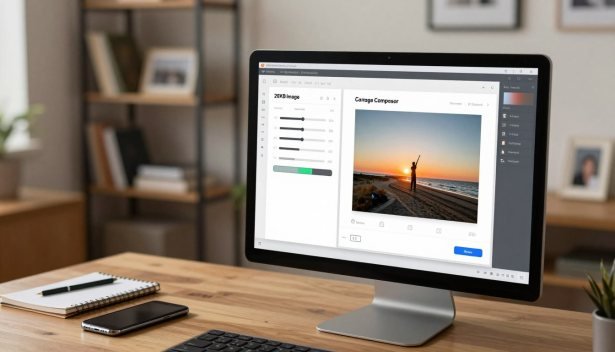
What to Do When the File Remains Larger Than 20KB
Crop unnecessary background areas or reduce the dimensions slightly if the application allows it. Then check the resulting file size and requirements again.
Improve a Result That Looks Too Blurry
If the image looks blurry, start with a clearer original and avoid repeated compression. A larger target size may be necessary when the portal permits it.
Resolve Unsupported Format or Failed Upload Errors
Check whether the portal accepts JPEG, JPG, PNG, or another format. If the upload fails, convert the image only when the required format supports that conversion.
Check Why the Downloaded File Has a Different Size
File-size readings can differ slightly between tools and operating systems. Use the downloaded file’s properties or details to check the value used by your device.
Confirm the File Size Using Your Device’s Properties or Gallery Details
On a desktop, open Properties or Get Info. On a mobile device, open the image details. This helps verify whether the image size reducer reached the selected target.
| ProblemPrimary CauseRecommended Solution | ||
| File still > 20KB | Large dimensions or detail | Crop or resize dimensions |
| Image is blurry | Strong compression | Use a clearer source or larger target |
| Upload failed | Unsupported format | Use the portal’s accepted format |
| Size mismatch | Different file-size calculations | Check file properties |
Tips for Getting the Best 20KB Image Result
To compress image to 20KB effectively, begin with the original and check the portal’s instructions. A smaller size can affect quality, so inspect the result before submission.
Start With the Original Image Instead of a Previously Compressed Copy
Use the highest-quality original available. Repeatedly saving a compressed file can remove detail and produce a poorer result.
Crop Unnecessary Background Areas Before Compression
Crop unused space when the required aspect ratio allows it. This can help the important subject remain clearer at a smaller size.
Select the Right File Format for the Image Content
Choose JPEG for many photographs and a format suitable for signatures or graphics when the portal supports it. Always follow the stated requirements.
Use Simple Backgrounds for Small Photos and Signatures
Simple backgrounds can make small photos and signatures easier to view. Keep the subject, text, and edges distinct.
Compare the Preview With the Original Before Downloading
Compare the processed image with the original and confirm its size, dimensions, format, and readability before downloading.
Who Can Use This Free 20KB Image Resizer
Students, job seekers, businesses, and mobile users can use an online image resizer when a portal or website sets a specific file limit.
Students Completing Online Applications and Admissions
Students can prepare photos and documents for admissions, scholarships, and examinations by following each portal’s instructions.
Job Seekers Uploading Photos and Signatures
Job seekers can resize photos and signatures for recruitment forms, provided the output matches the stated requirements.
Businesses Preparing Images for Websites and Forms
Businesses can create smaller website or form images while keeping original files for future editing.
Anyone Needing a Quick Photo Size Reduction on Mobile
Mobile users can adjust a file from a browser when the device and connection support the process.
Start Resizing Without Creating an Account or Installing an App
If supported by the service, upload an image, set the target, review the result, and download it without installing an app. Check the website for current account and file-handling requirements.
| User CategoryPrimary NeedKey Benefit | ||
| Students | Admissions & Exams | Prepare files for stated limits |
| Job Seekers | Resumes & Signatures | Adjust application images |
| Businesses | Web & Forms | Manage smaller assets |
| Mobile Users | On-the-go editing | Browser-based access |
Conclusion
When you need to resize image to 20KB, check the portal’s size, dimensions, and format requirements first. Resize Image To 100KB can help you prepare a suitable file from a supported device.
Review the final image, confirm its quality and file size, and keep the original for future use. Use the tool only for files appropriate for online processing.
Visit resizeimageto100kb.in, upload an image, set your target size, and review the result before submitting it.